How to Import MBOX to Thunderbird? – 4 Quick & Simple Methods


Overview: There are numerous methods to import MBOX to Thunderbird easily. You can use built-in add-on which is your ImportExportTools NG extension. Users can move the MBOX files to the default profile or directly use our professional solution to process large files or mailboxes in quick time.
This tutorial provides information on how to open MBOX file in Thunderbird. It means where the imported files are saved, and how to manage multiple files at once and what to do if you cannot see the MBOX file after importing it.
Talking about MBOX files, it is a type of format which is used to store email messages from applications such as Google Takeout, Opera Mail, Apple Mail, Eudora, and Thunderbird. If you have taken backup of your MBOX files, then you may want to open it in Thunderbird in order to access your old email if needed.
Can Thunderbird Open MBOX Files?
Yes, you can open your MBOX files with the help of Thunderbird. You can import them to Local Folders by using ImportExportTools NG add-on or manually placing the MBOX in the Thunderbird’s profile directory. Moreover, it has a built-in import feature for supported data. If you have multiple MBOX files or a huge set of emails, then use our dedicated tool to make the import process smooth while preserving folders structure.
Table of Content
Reasons to Open MBOX File in Thunderbird
There are several reasons why users would want to import MBOX to Thunderbird. Let’s read those points given below:
- Users switching email clients that use the MBOX format (such as Apple Mail or Mozilla’s discontinued Eudora) to Thunderbird for successful import
- Sometimes, there is a need to consolidate multiple accounts across different platforms for easier management
- Users often back up their emails in MBOX format. So when they decide to import these backups into Thunderbird, they will need to open it
- Some users prefer Thunderbird due to its features, security, and open-source nature. They might import MBOX files to utilize these benefits
- If a user’s current email client is being discontinued or no longer supported, they might export their emails as MBOX files.
- Then, later import them into Thunderbird to continue using a regularly updated and supported application
- To open previously exported emails without going back to the original client
- You can access the saved MBOX archives after getting Thunderbird reinstalled
- It allows users to use messages exported from Google Takeout
- Move messages from different sources of MBOX into Thunderbird Local Folders
What are MBOX Files?
It is a single file that contains data in the form of emails and messages. This is used for storing or transferring emails from one email client to another. The name of the file may change, or it may not even have an extension at the end which depends on the email client. Also, Thunderbird mail folders are stored in MBOX files and inside profile folders. Before starting the import process, remember to select the correct MBOX file and not the .msf file. As, it only contains the index information of the emails.
| File | Purpose |
| MBOX | Contains email messages |
| .msf | Thunderbird index file |
| .sbd | Directory used for mailbox subfolders |
How to Import MBOX to Thunderbird Using ImportExportTools NG? Free Ways
Remember: This manual method has a few drawbacks to it which is why experts recommend using a high-end professional tool explained afterward. It will make sure that data is imported safely & no signs of data loss are seen.
Compatibility Note: As Thunderbird and ImportExportTools NG regularly release updates, the menu names and other available options may change from one version to another. Currently, the version of ImportExportTools NG available is supported with various recent versions of Thunderbird including the latest one which is 156.0.1. It’s important to verify the compatibility status of the add-on before installing it
Phase-1: Install the Free Add-on in Thunderbird
ImportExportTools NG is an extension which is used to import and export MBOX data. As, it is a good alternative compared to normal functionality available in Thunderbird. It also keep the folders and mailbox hierarchy the same while importing.
Follow the steps mentioned below to install the free add-on:
- Launch Thunderbird by navigating to Programs and then Thunderbird.
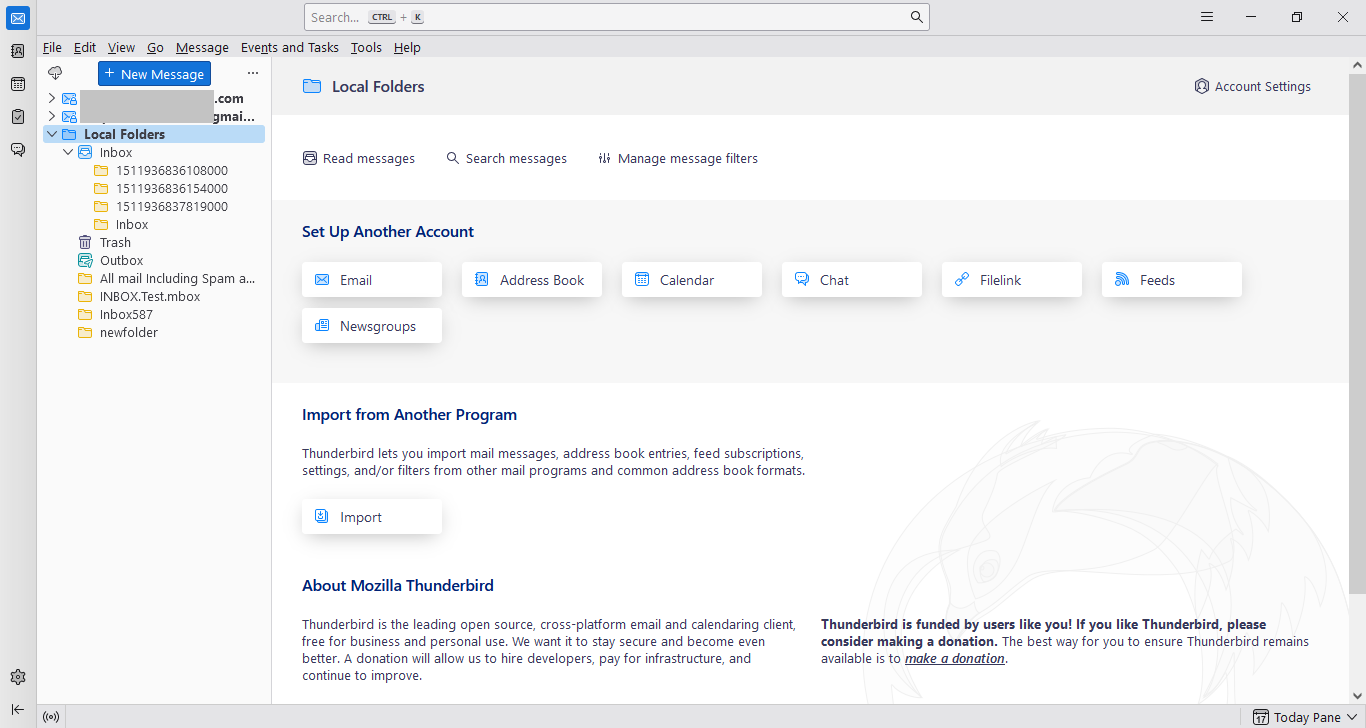
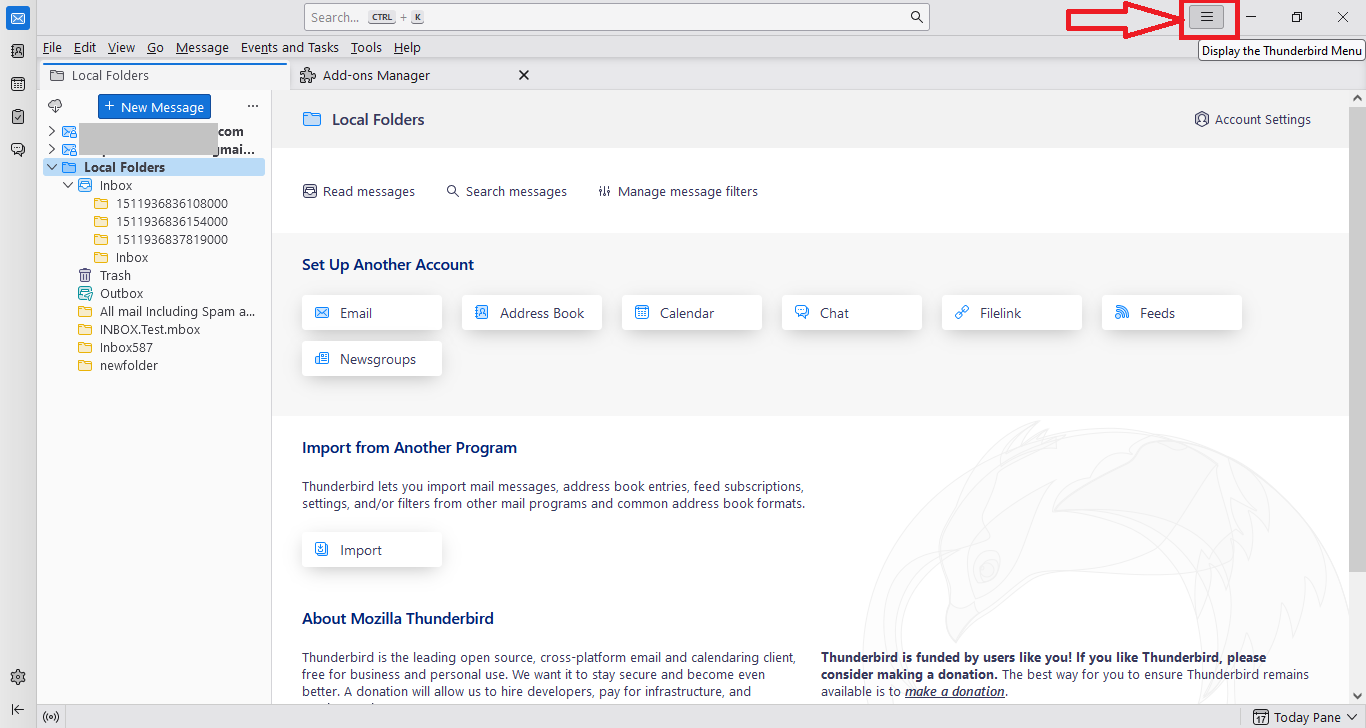
- Click on the Display the Thunderbird Menu icon (3-lines) in Thunderbird.
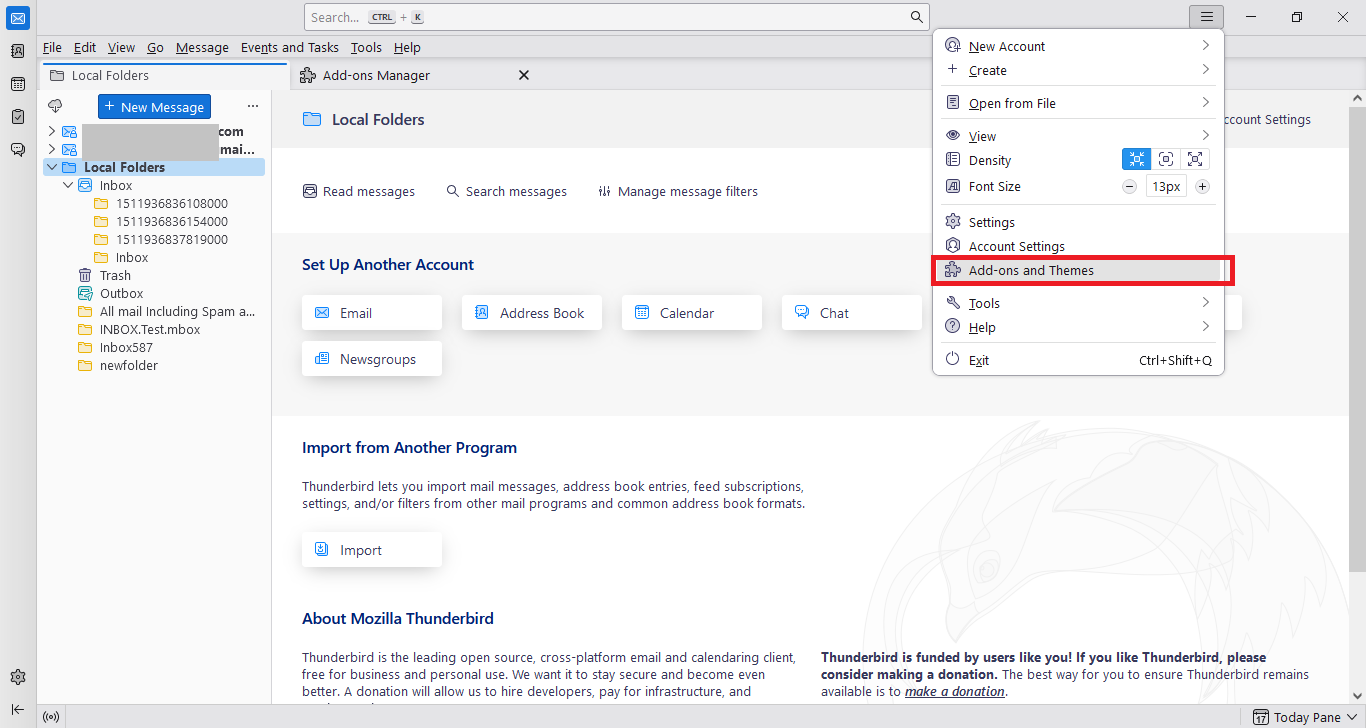
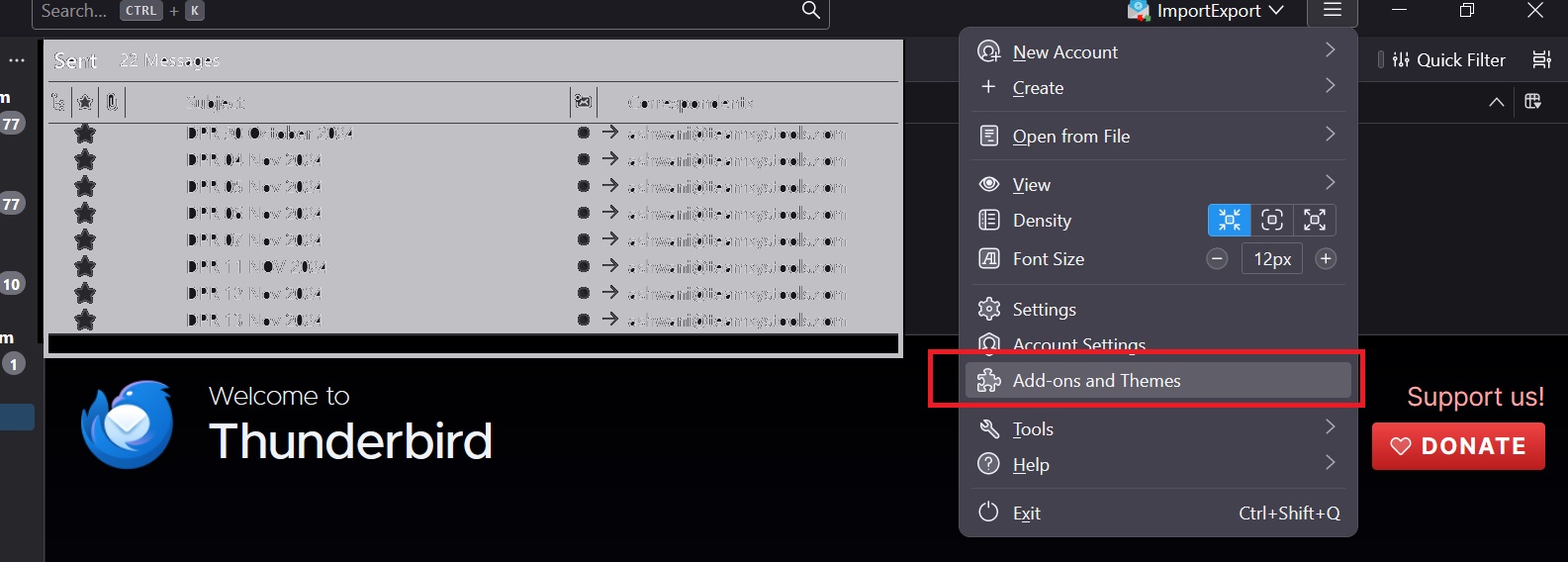
- Now, click on the Add-ons and Themes option from the dropdown list.
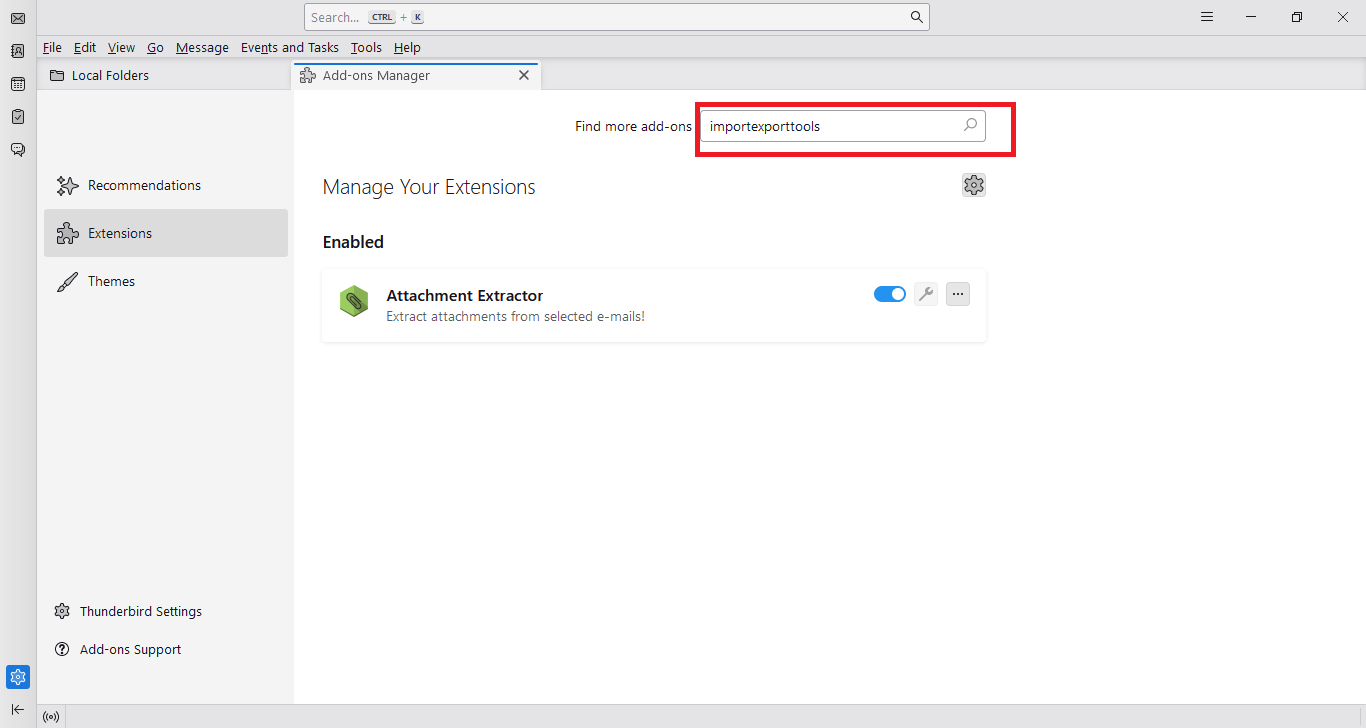
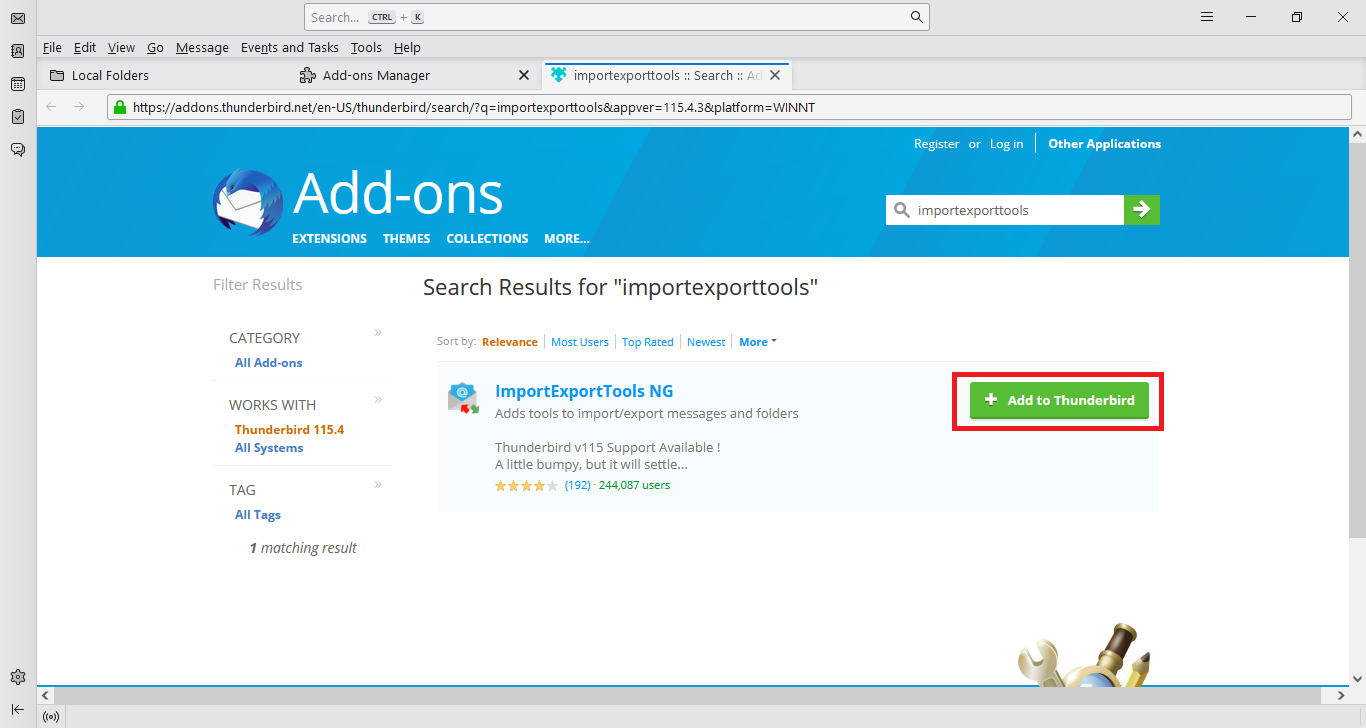
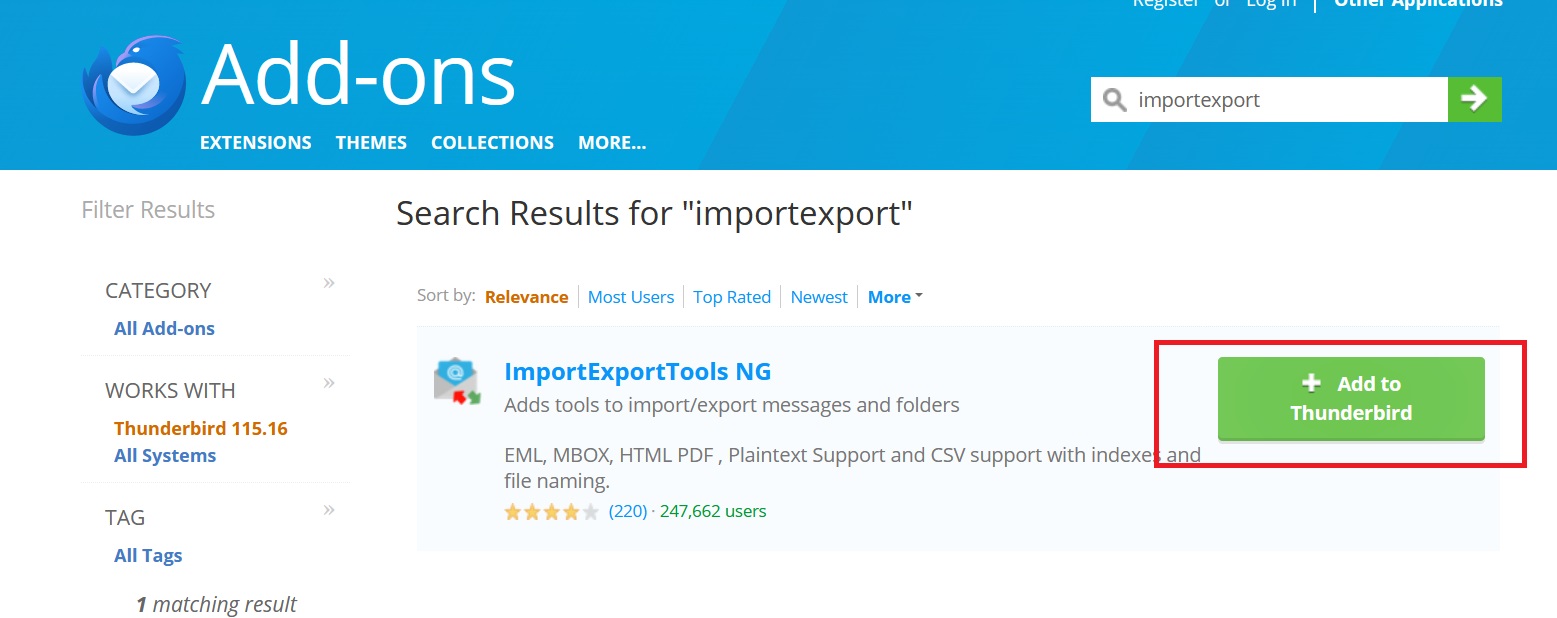
- To find ImportExportTools NG, go to Thunderbird’s Add-ons Manager. Then, press the Enter key.
- In the new window that appears, click on the + Add to Thunderbird button corresponding to the ImportExportTools NG button.
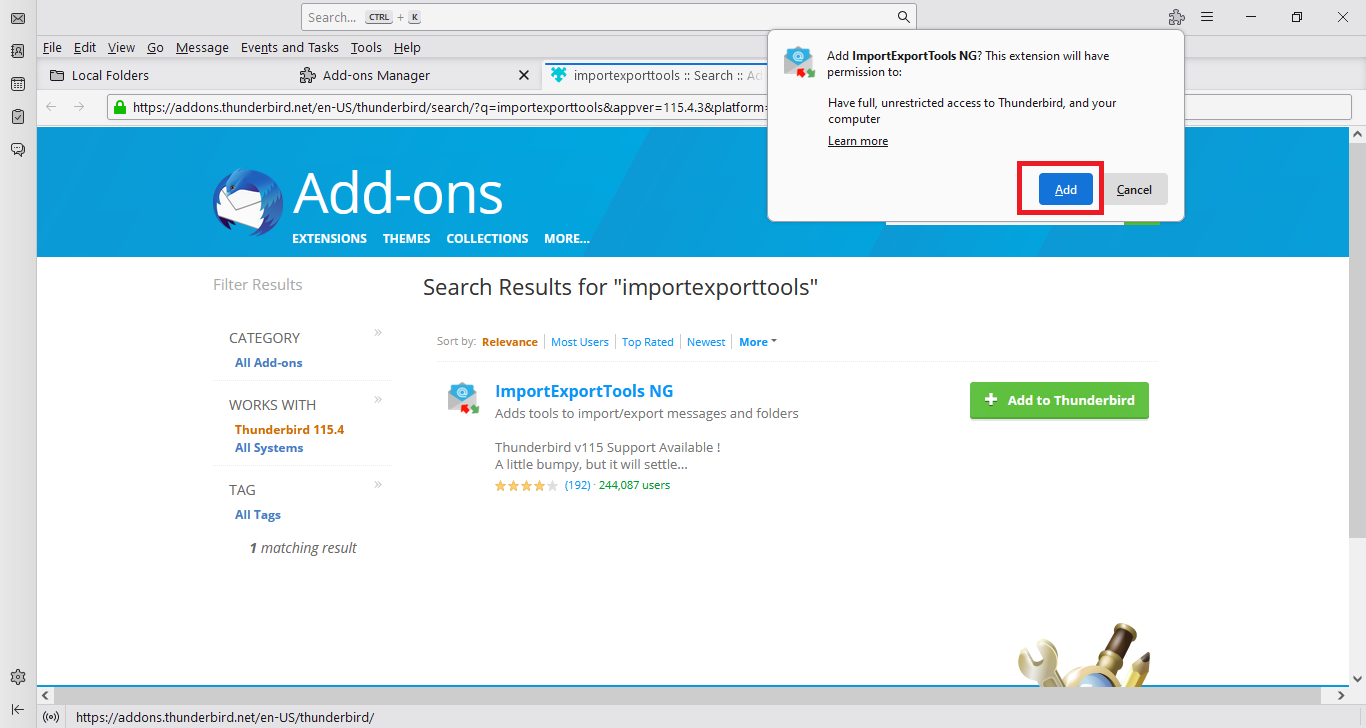
- Click the Add button to provide permissions to the add-on.
- Finally, restart Thunderbird once the add-on is installed successfully.
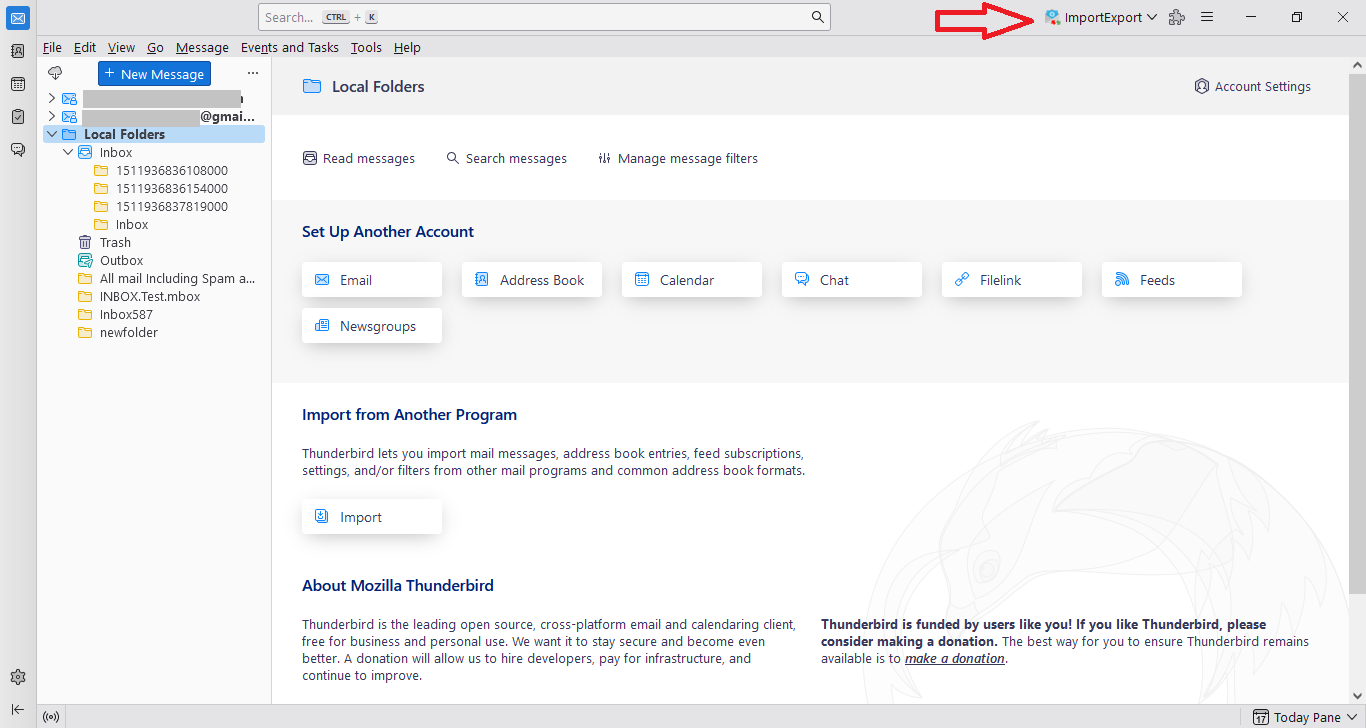
Now, move on to the next phase to complete the manual process.
Phase-2: Now, Import MBOX to Thunderbird
After the installation of ImportExportTools NG, you’ll have to import a single MBOX file into Thunderbird. For a smooth workflow, it is recommended to first move into Local Folders. This works best if your destination is an IMAP account. Then, you are able to easily copy or transfer the emails from the Local Folders to the appropriate account later on.
Follow the steps mentioned below:
- In Thunderbird, right-click on the mailbox (Local Folders) to import the MBOX file.
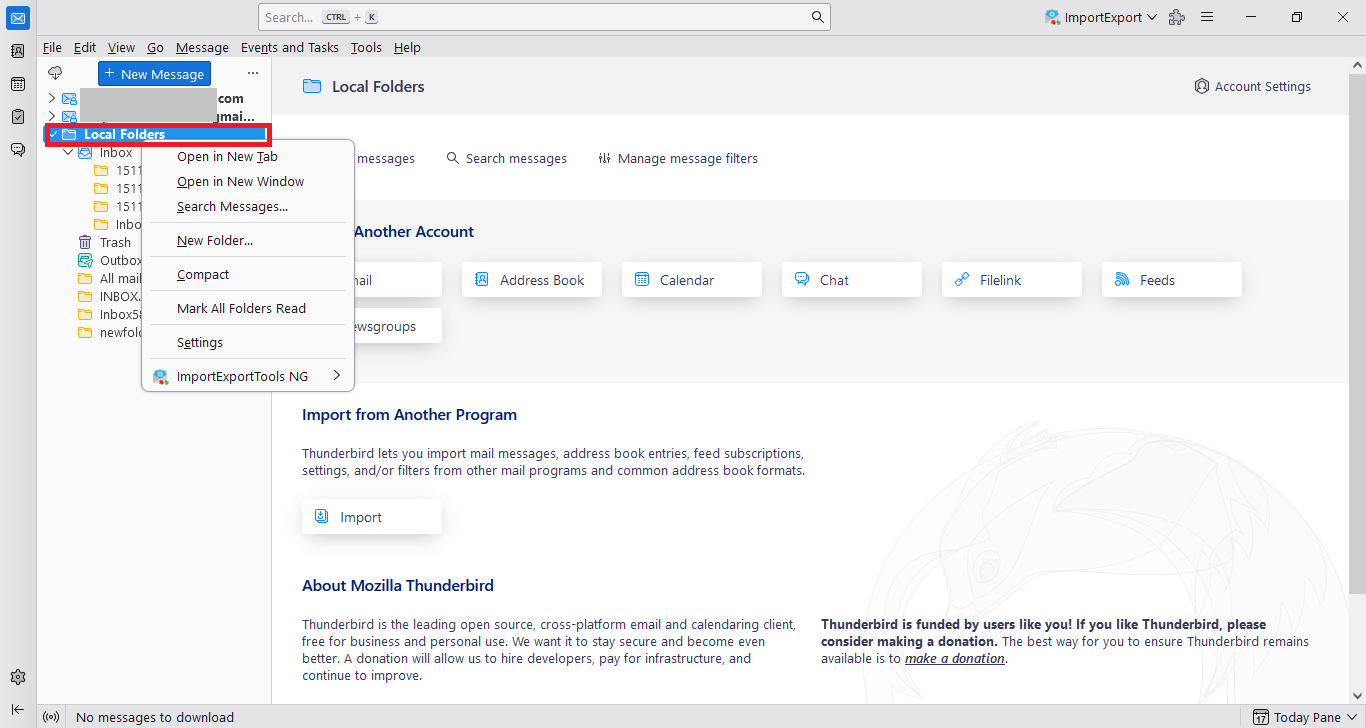
- Afterward, a list of options will appear. Here, select ImportExportTools NG >> Import mbox files >> Individual mbox files to start the procedure.
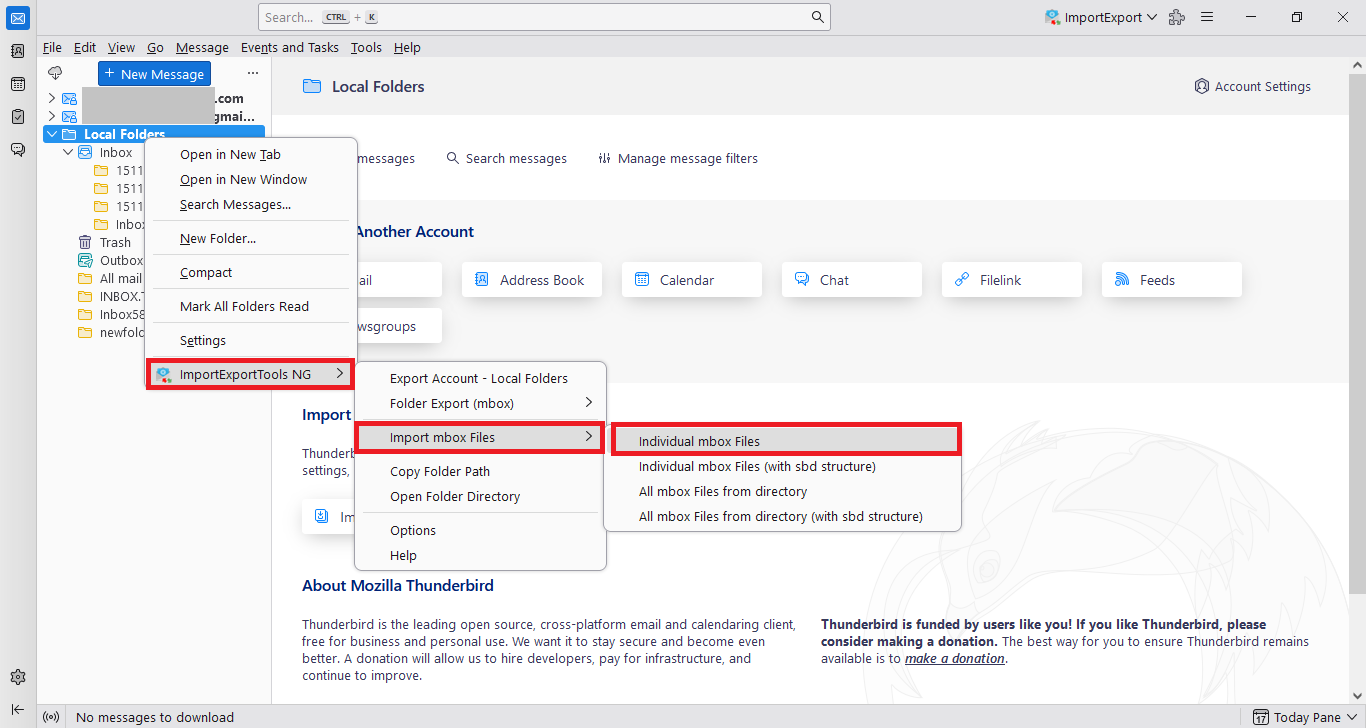
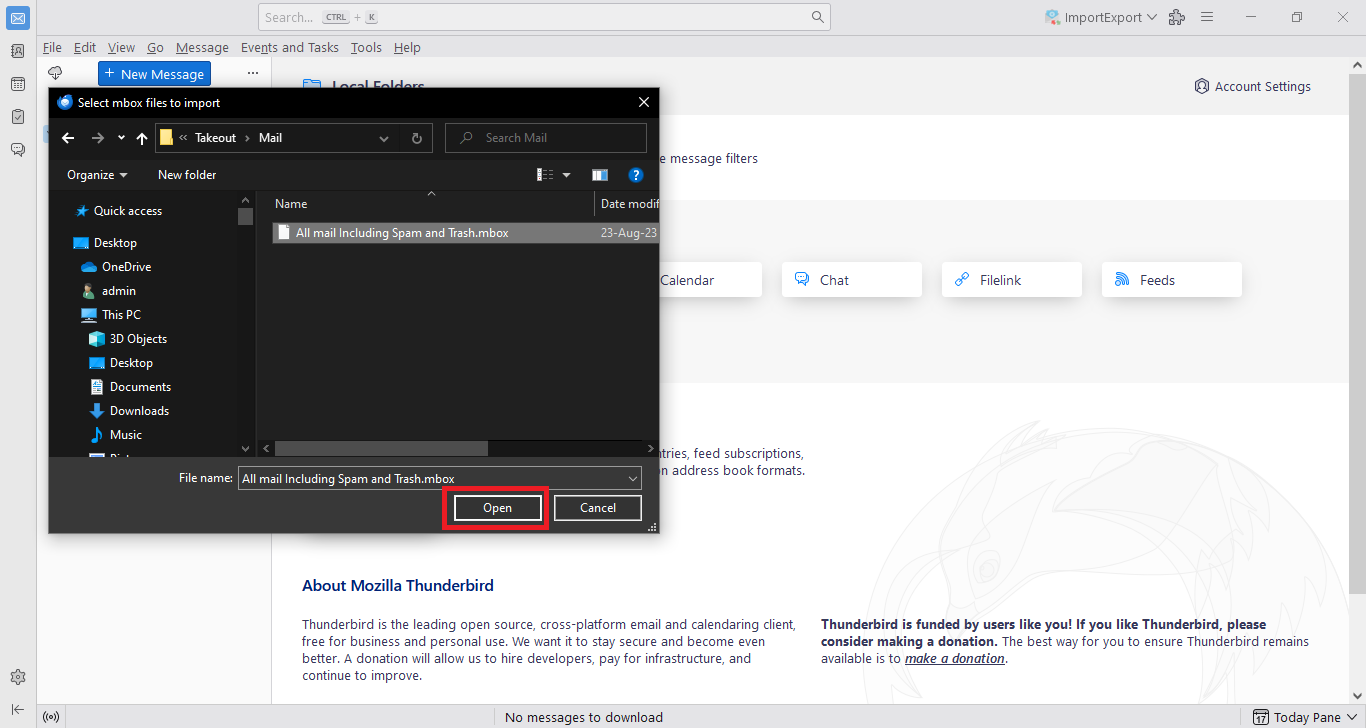
- Then, locate the MBOX file from the location where it is stored on the hard drive.
- Click on the Open button to import MBOX files to Thunderbird application.
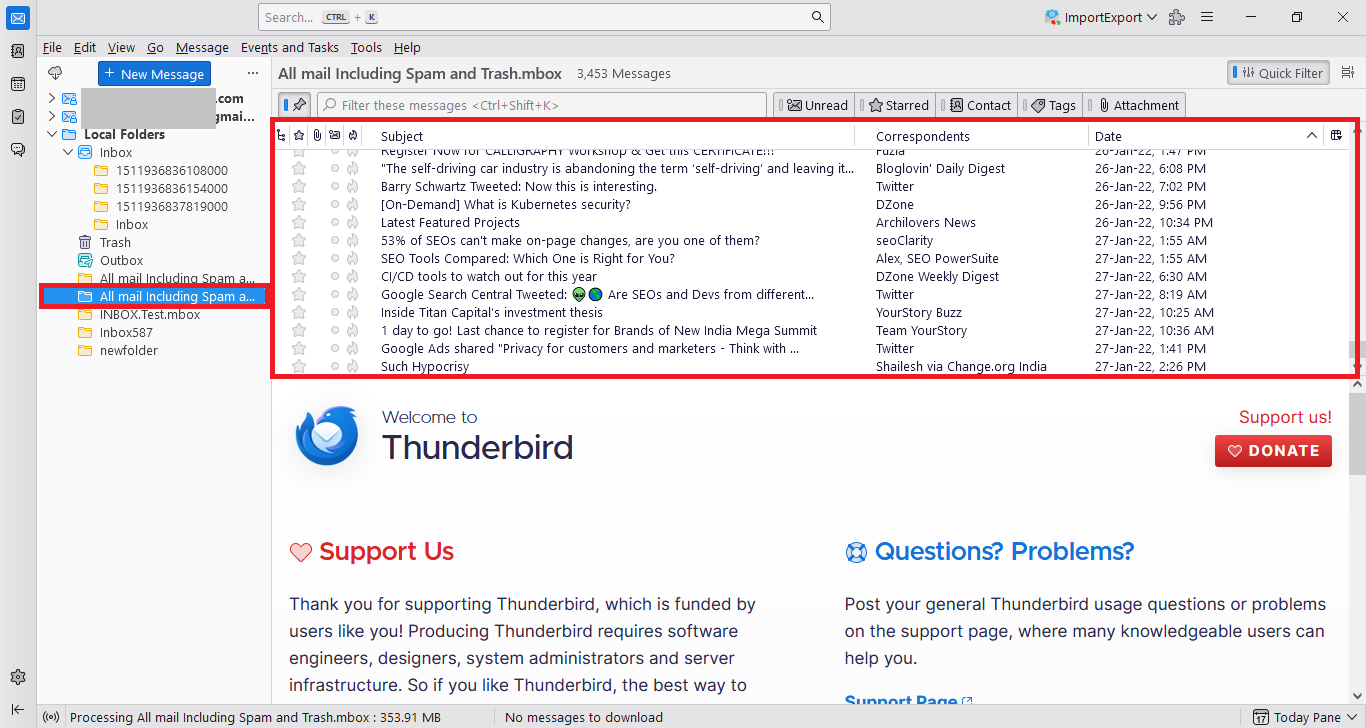
- The emails are successfully imported into Thunderbird.
If your backup has multiple MBOX files, then it could take a lot of time to import every email. Fortunately, ImportExportTools NG allows you to import MBOX files from the directory or handle entire mailboxes.
In order to move more than one MBOX file, you can create or choose a folder in Local Folders, launch ImportExportTools NG, and pick the required option for MBOX import. Finally, select the directory with the mailbox files and continue with the importing process.
What About SubFolders?
You may have many folders and subfolders rather than a individual file in the MBOX format. This makes it impossible to recreate the entire email structure just by importing a single mailbox file. To import a mailbox structure that uses the MBOX format, the user should choose the import option. Then, the import should be directed to the folder where the MBOX file is stored. So, users don’t have to move file by file.
Some Issues Users May Face:
- Thunderbird gets updated on a regular basis, so sometimes the add-on is outdated and does not work on the latest Thunderbird versions.
- It has been found in some cases that the attachments and images have come out as missing or broken.
- Some emails have missing header data like subject, to, from, etc.
- Manual methods are lengthy and time-consuming to perform.
Also Read: How to Import MBOX Files into Microsoft Outlook?
Phase-3: Import Google Takeout to Thunderbird Client
It allows you to download Gmail data in the MBOX format. If you have received the Gmail MBOX file and want to import it into Thunderbird, you may use the ImportExportTools NG add-on.
For that, you first have to find the file after the download. Then, you can launch Thunderbird and click on the Local Folders tab. Once you’re in Local Folders, just import the MBOX file via the ImportExportTools NG add-on. This will allow you to see all active messages. You may have to keep track of the messages because they all are imported one. If you want to keep the imported emails from the Local Folders tab using your IMAP account. Then, you can easily move or copy the messages into the respective folder.
Now, follow these simple steps to get started with the process:
1. Firstly, log into your Gmail account.
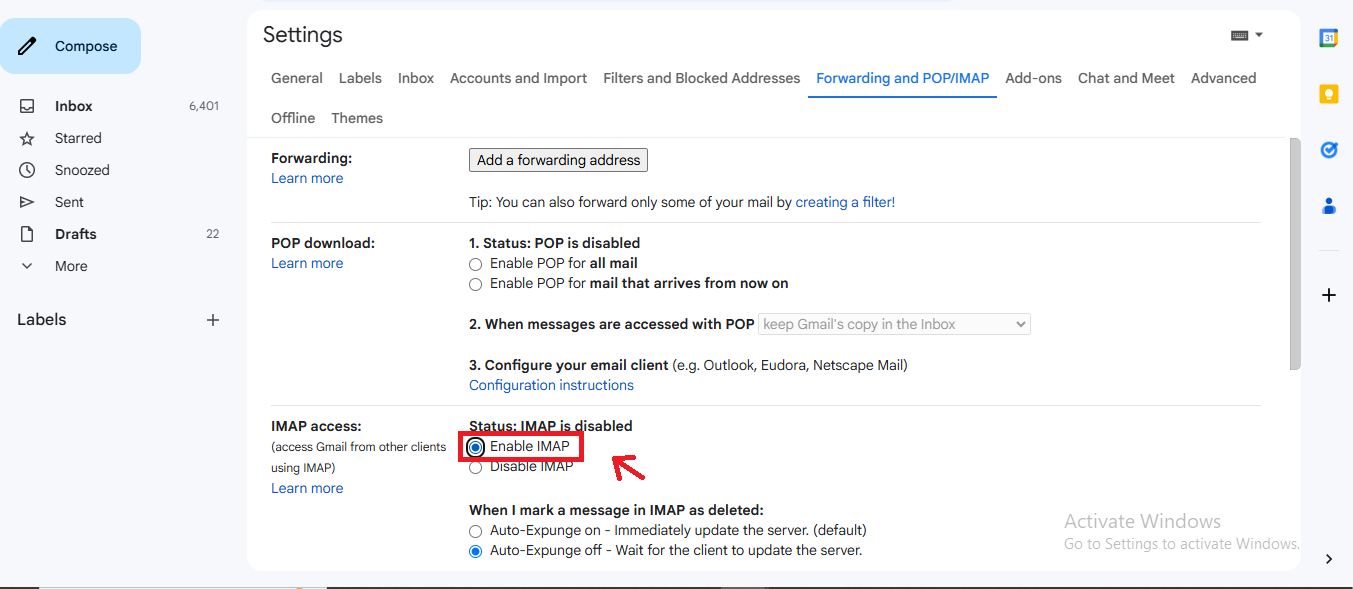
2. Next, go to Settings > Forwarding and POP/IMAP. You need to enable IMAP and save changes.
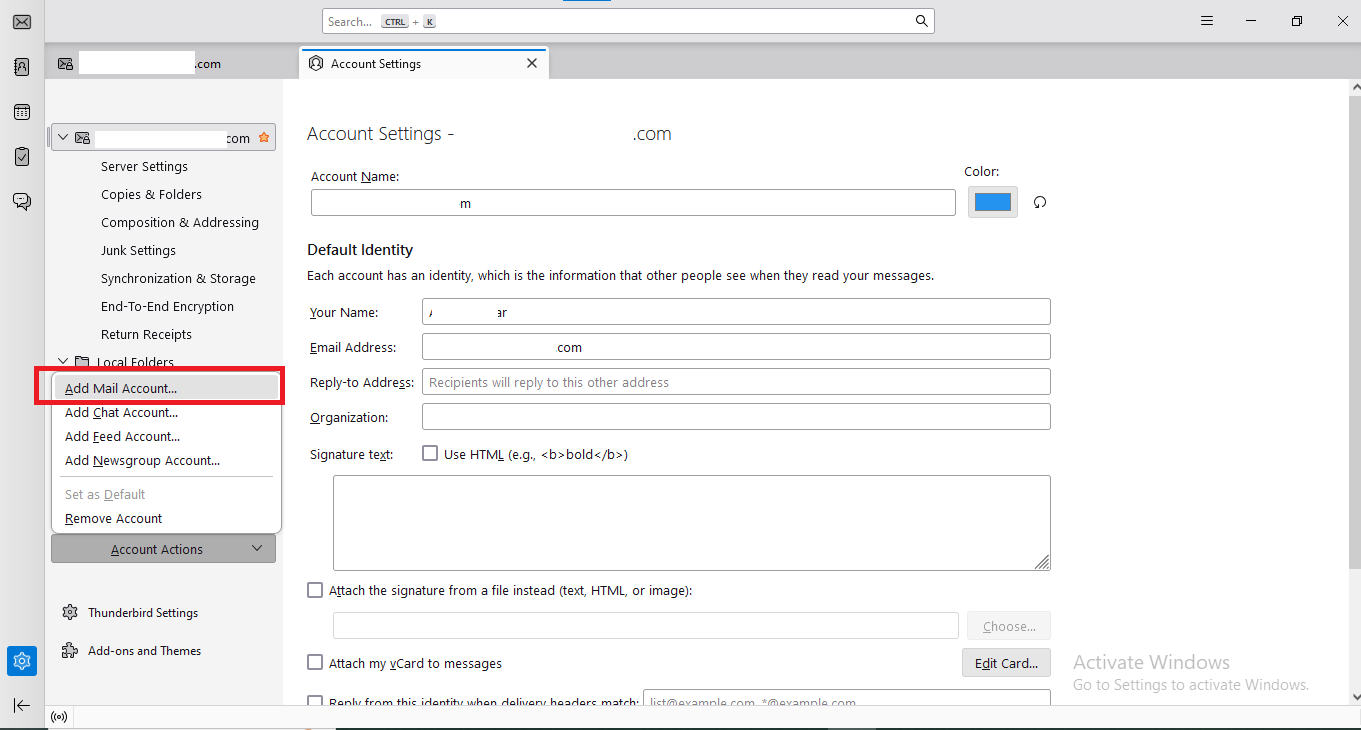
3. Now, open Thunderbird and go to Account Settings > Account Actions > Add Mail Account, and enter your Gmail credentials. Thunderbird will automatically configure the IMAP settings.
4. In Thunderbird, go to Menu > Add-ons and Themes.
5. Search for ImportExportTools NG, and click + Add to Thunderbird & restart your Thunderbird.
6. Now, right-click on the Local Folders and select ImportExportTools NG > Import MBOX file, to import your MBOX file.
7. You can drag and drop or copy the imported emails to your Gmail folder in Thunderbird.
8. Now, just check your Gmail account in a browser to confirm the transfer process.
Phase-4: Open MBOX File in Thunderbird Using Profile Directory
In this section, we have provided you the steps to import MBOX to Thunderbird manually. Just go through the steps mentioned below:
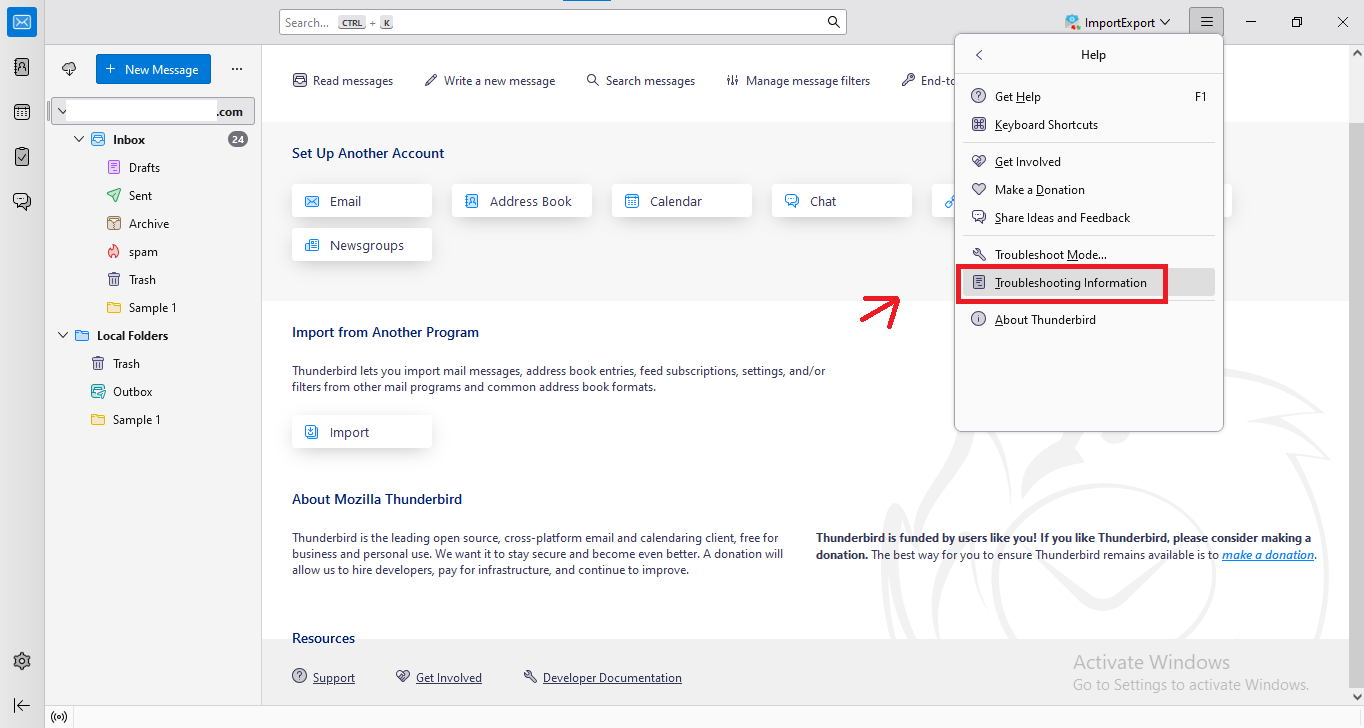
1. To start with, open your Thunderbird client and view to Help > Troubleshooting Information option.
2. Under Profile Folder, click Open Folder to access it.
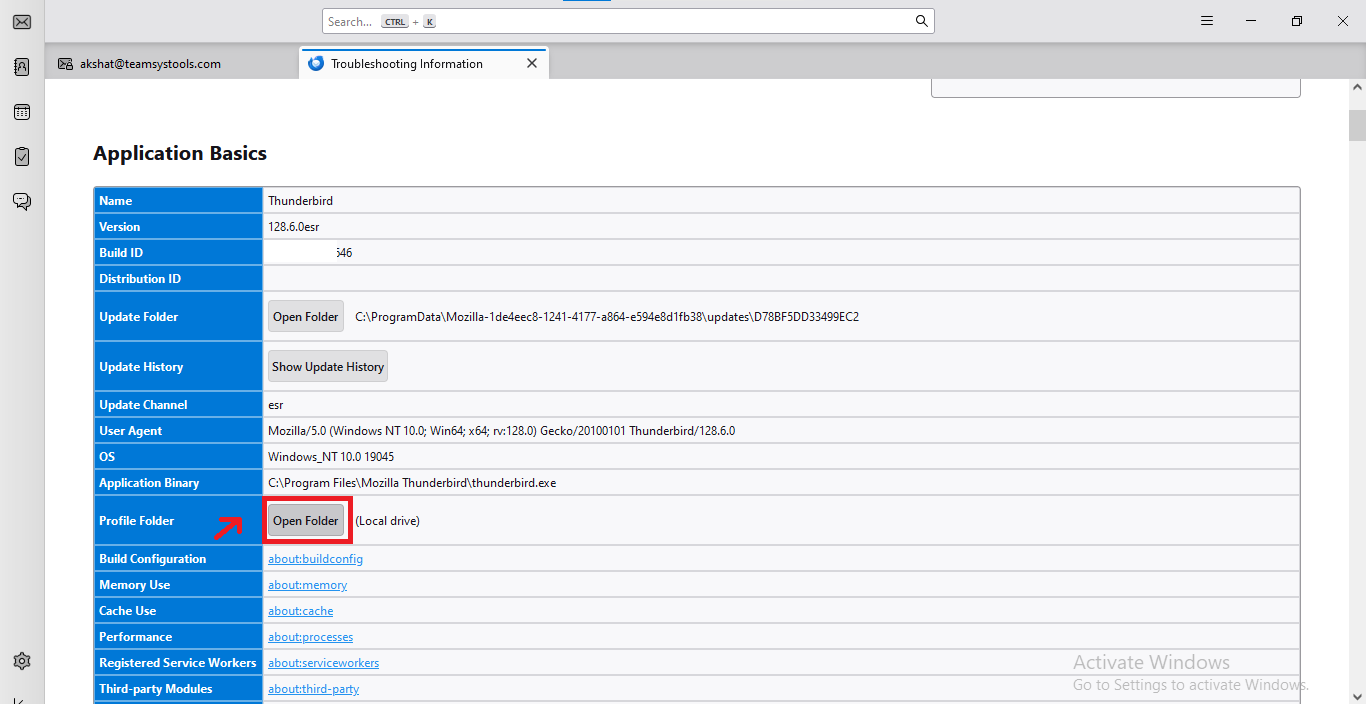
3. Then, you need to close Thunderbird to prevent a clash.
4. Inside the profile folder, open Mail (for POP) or ImapMail (for IMAP).
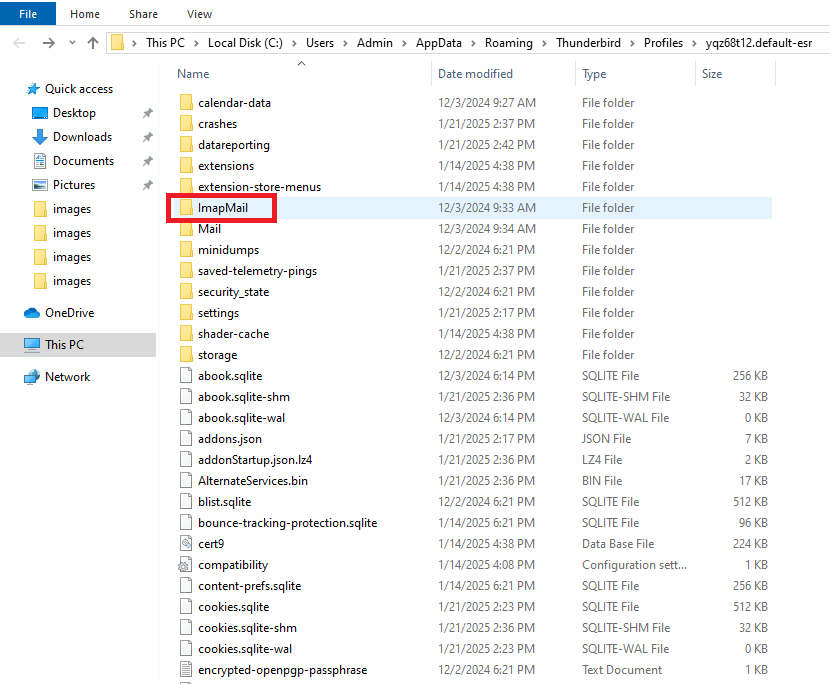
5. Paste the MBOX file into the correct account folder.
6. Again, reopen the Thunderbird application. The MBOX file will appear as a folder under the account.
7. Just verify the folder to ensure all emails are intact properly.
Professional Tool to Import MBOX to Thunderbird
In order to overcome the limitations of the free manual method provided by Mozilla Thunderbird and other addons. A user is advised to use our PCVITA Thunderbird Import Wizard and is widely used application when it comes to MBOX files.
For Windows:
For Mac:
It is an effective and professional solution to import MBOX files in bulk. It allows users to move their files along with their associated email attachments in Thunderbird.
One can also transfer selective emails from the MBOX file using date-range filters. In addition, it is compatible with all the latest Windows OS versions like Windows 11 (64 bit), Windows 10, 8.1, 8, and 7 (32 & 64 bit).
Software Steps to Import MBOX to Thunderbird Securely
It is advised to follow the steps carefully and at the end you will be able to access the emails and other email associated data from MBOX to Thunderbird account.
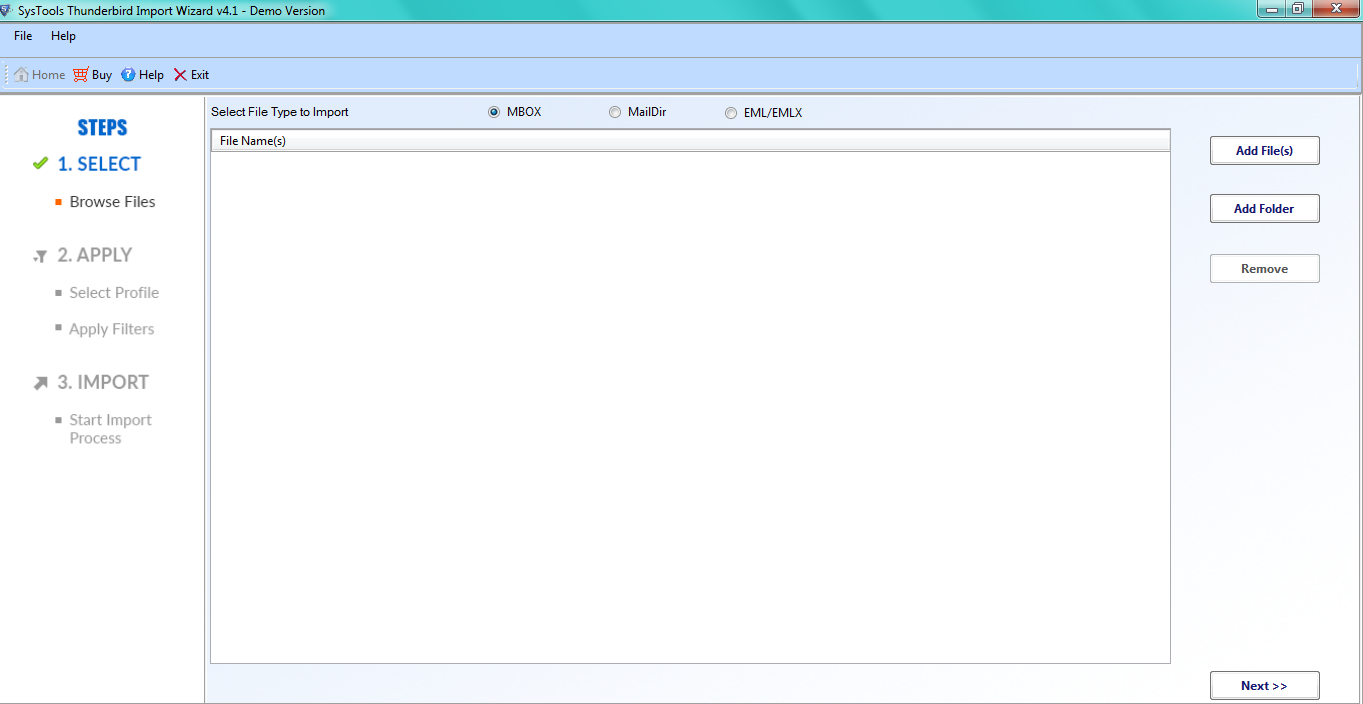
Step-1: Launch the software on your Windows OS machine. The user interface of the software is as follows:
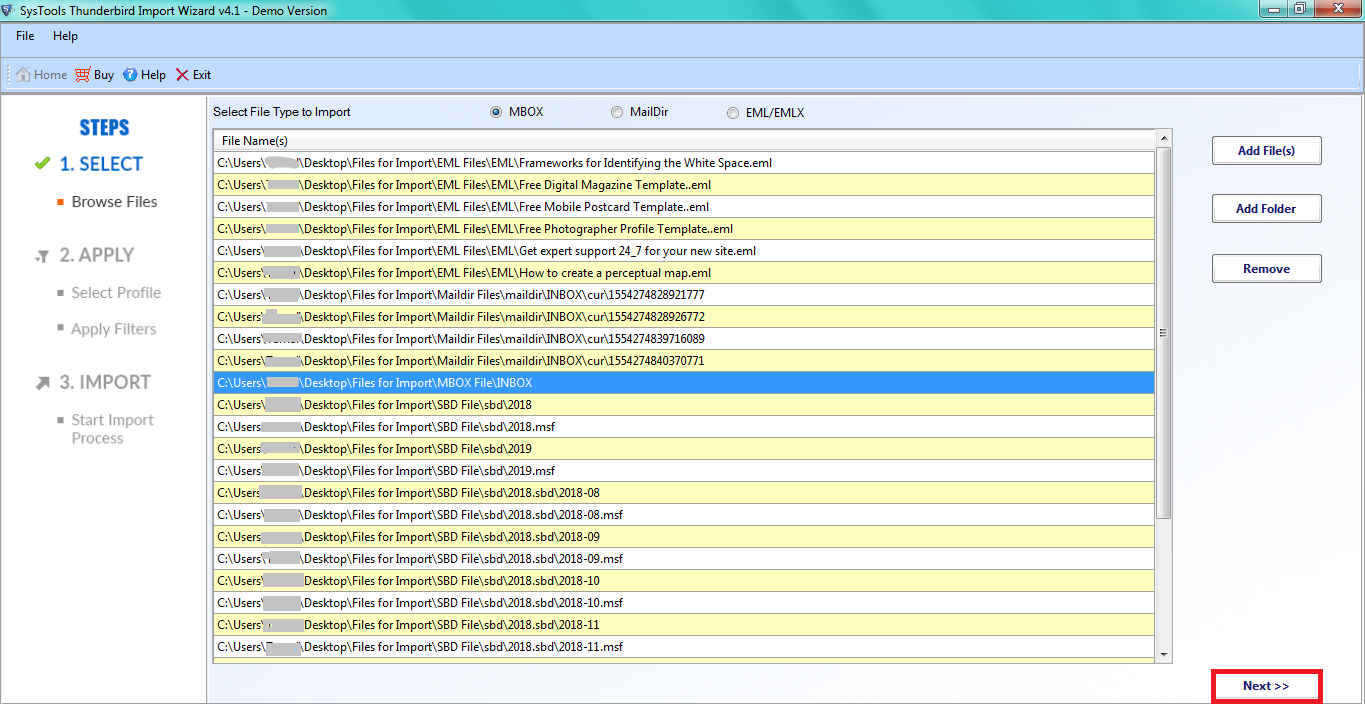
Step-2: Now, click the Add Folder button and select the folder containing the MBOX files.
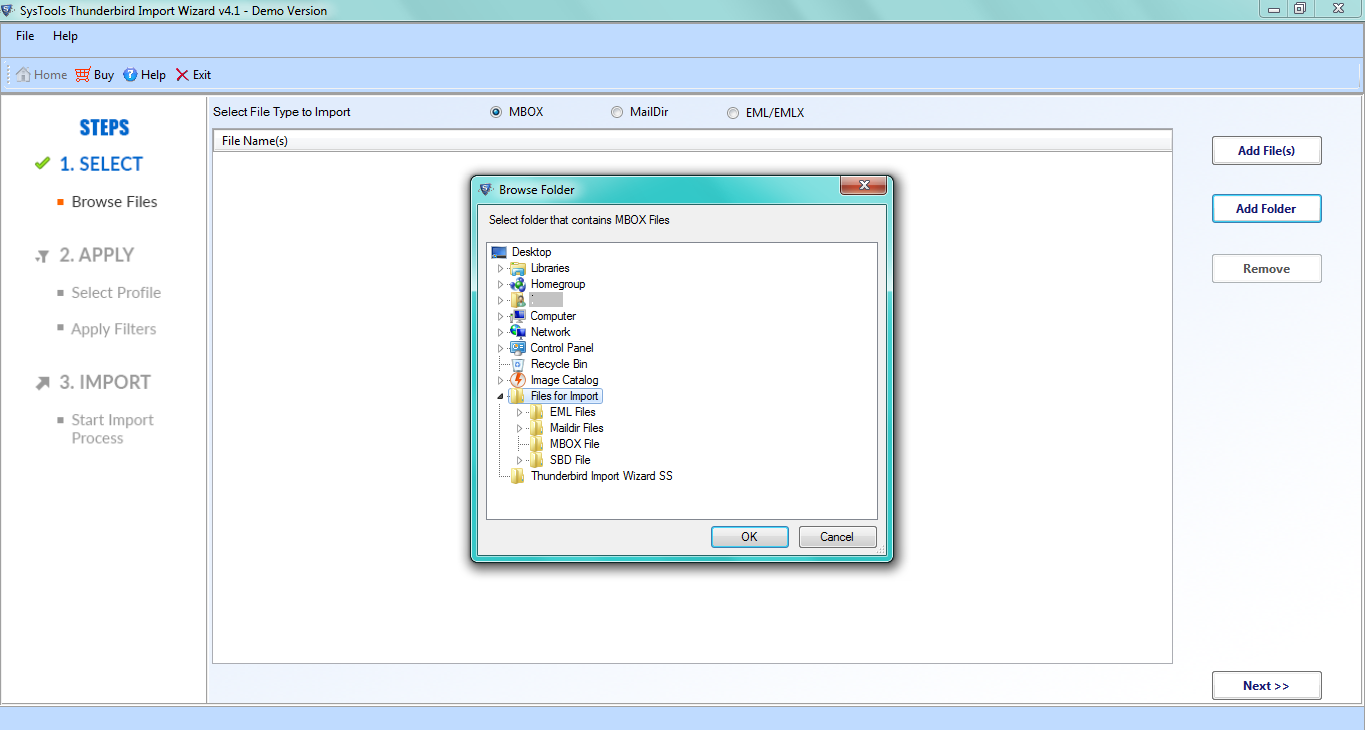
Step-3: Once the file is added, the software will display all the MBOX files or folders that you have imported within the software interface, click on Next.
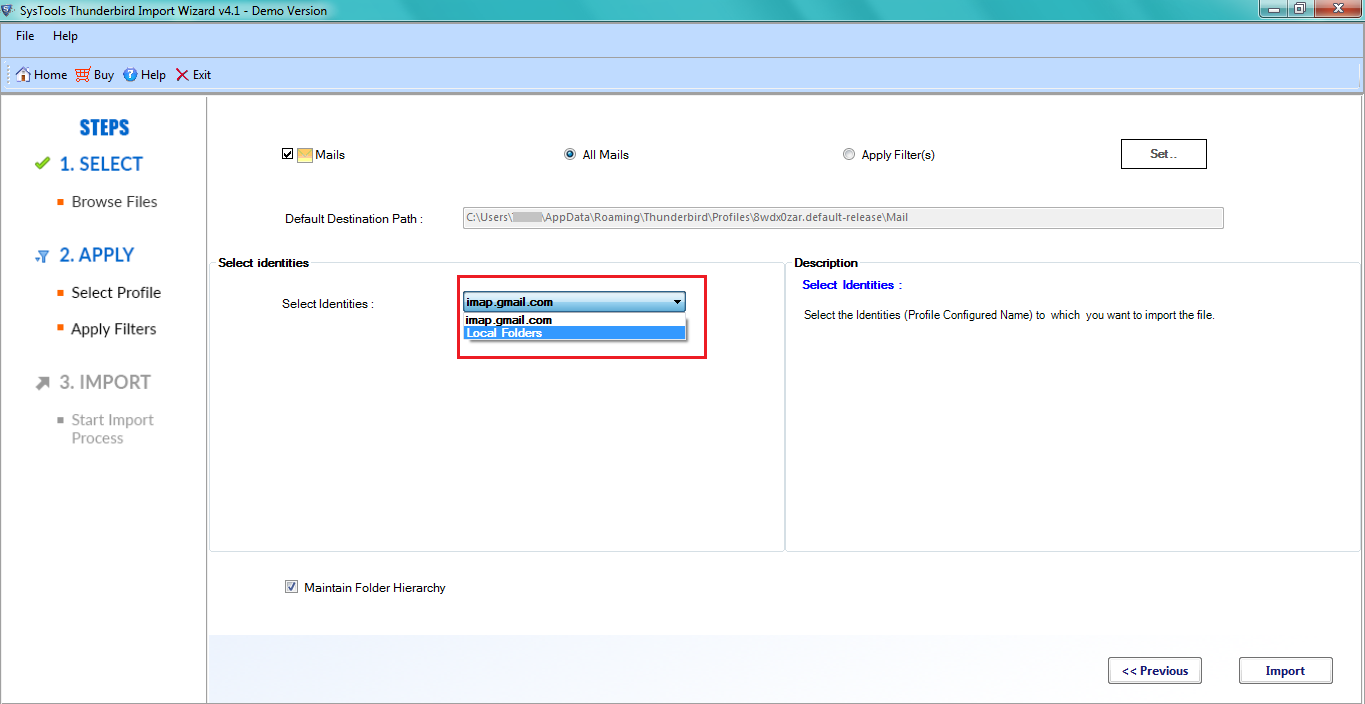
Step-4: Select the Identity/Account folder in which you want to import the MBOX file.
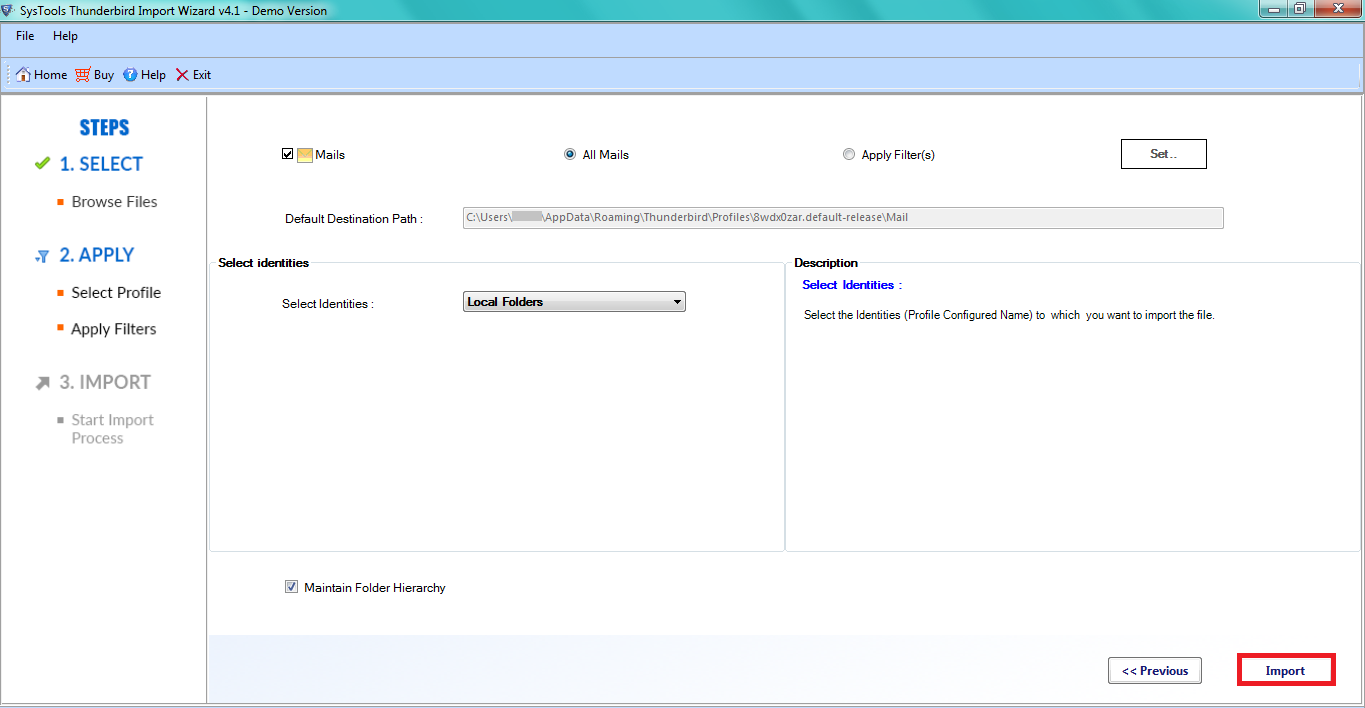
Step-5: Finally, click on the Import button to upload MBOX files to Thunderbird account.
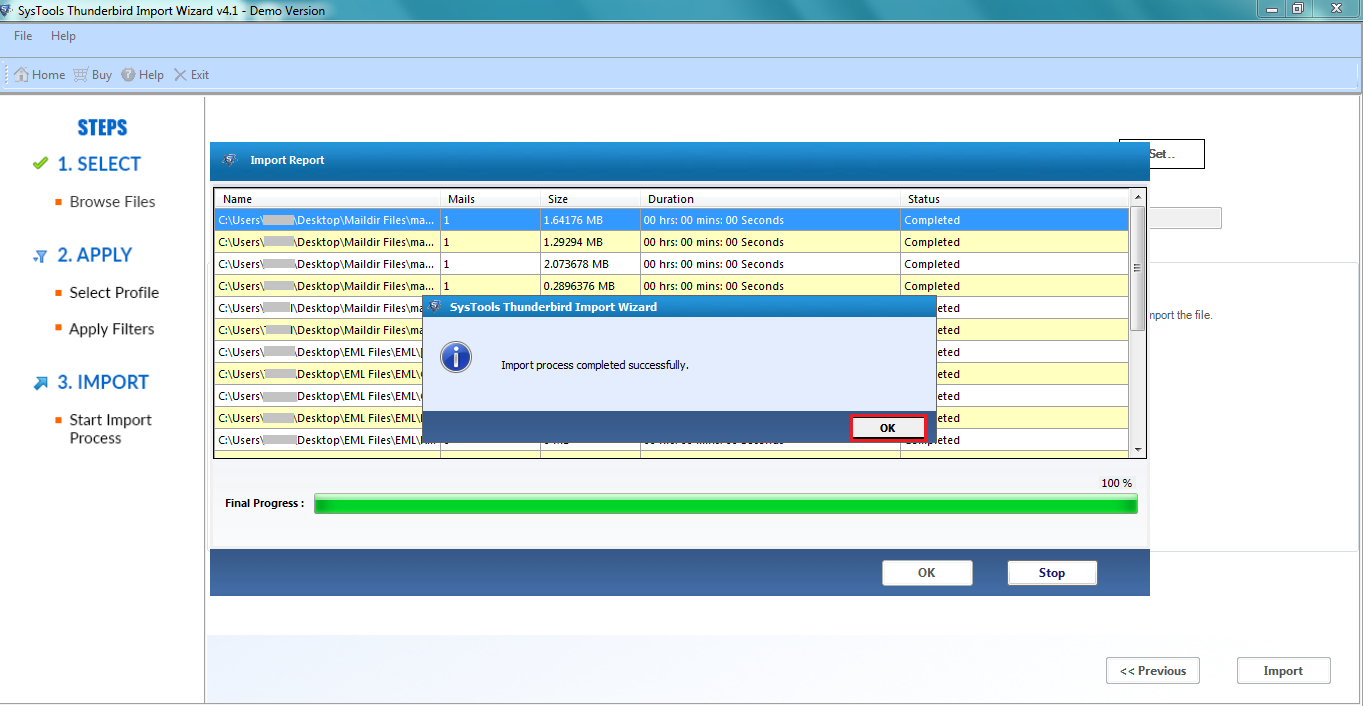
Step-6: Click the OK button once the files are uploaded successfully.
Step-7: Users can view all the imported emails within the Thunderbird email client on the system.
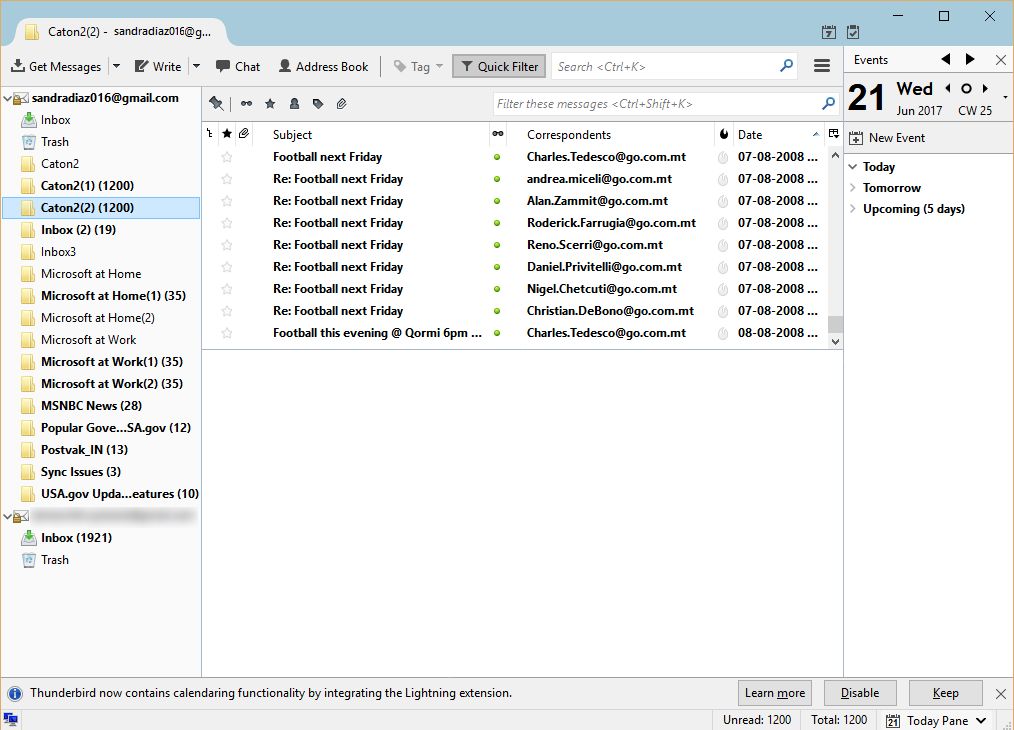
After this, you can open MBOX file in Thunderbird and all your emails will get imported to the chosen email client successfully.
Which Method is Best for You – Comparison Table
This is the section where users can compare and select which method works best for them. Choosing the right approach will help you to import MBOX to Thunderbird smoothly.
| Method | Best For | Multiple MBOX | Folder Structure | Technical Knowledge |
| ImportExportTools NG | Individual/manual imports | Yes | Yes, depending on import option | Low |
| Thunderbird Profile Method | Advanced/manual users | Yes | Yes | Medium–High |
| Gmail/IMAP Steps | Specific transfer scenarios | Limited | Depends on workflow | Medium |
| Professional Solution | Bulk MBOX migration | Yes | Depends on software support | Low |
What Happens After Importing?
The messages usually show up under the destination Thunderbird folder which you choose. In that folder, open some of the messages to verify whether they have their text, sender, recipient, date, and other attachments. If your MBOX file was imported into Local Folders, and now you want to see those emails on your IMAP account. For that, you have to move or copy each mails manually.
User Queries
Let us understand the situation of users who wish to use Thunderbird to open MBOX file mail on Windows OS.
“Hi, I was using Apple Mail in my previous office but now I have changed my job. I have an MBOX of my Apple Mail which I want to transfer to my new email client. I am using Thunderbird in my new office so I urgently want to move my files to Thunderbird. Could someone help me with the same?”
“Hello! I have been using Thunderbird for a long time but recently my system got corrupted so I had to uninstall my old Thunderbird my old MBOX File still exists and I want to import it into my new profile. I am unable to do it so looking for a method. If anyone knows, please suggest.”
Conclusion
We have explained various methods to import MBOX to Thunderbird, as it varies depending on the size and organization of the email archive. ImportExportTools NG is a useful add-on in moving emails to Local Folders, if the MBOX is stored in a single file. When people have several MBOX files or huge archives, then they should go with our expert solution. To access MBOX files, you can try the manual steps of ImportExportTools NG process first. Be sure to back up the original MBOX files before making any edits to your Thunderbird account as well as check the imported emails afterwards.
Frequently Asked Questions
What is ImportExportTools NG?
ImportExportTools NG is an add-on for Thunderbird. It is a free-of-cost add-on that incorporates multiple import and export functionalities in the Thunderbird application. Here, this add-on is used to open MBOX file in Thunderbird.
What does this professional tool do?
This is software that helps you upload MBOX files to Thunderbird application. It is a specialized professional solution that prevents loss of data integrity during the process, unlike the manual method.
Can Thunderbird import MBOX files?
Yes, Thunderbird can import MBOX files by using either the professional software that we have discussed above or an add-on (ImportExportTools NG). You can download the add-on from Thunderbird extensions store and the software from its official website.
How do I Import MBOX to Thunderbird manually?
To import MBOX files into Thunderbird, right-click on Local Folders and choose ImportExportTools NG > Import mbox file > Import directly one or more MBOX files. Then, select your MBOX file from the system and click on the Open button.
Is ImportExportTools NG able to upload to IMAP configured email account?
To import your MBOX file into the IMAP-configured Thunderbird account, first, upload the file to Local Folders, then use Copy/Move to transfer the uploaded emails to the relevant IMAP-configured account folders. The add-on does not support direct upload into the IMAP account.